Get your AI Agent
running in 6 simple phases.
No complicated crypto knowledge needed. Follow the steps in order, and you'll know exactly what to do at every stage.
Get ready first.
You only need Telegram and a way to buy Solana (SOL).
Get your agent wallet.
Your Telegram agent needs a wallet so it can receive the SOL you send to it.
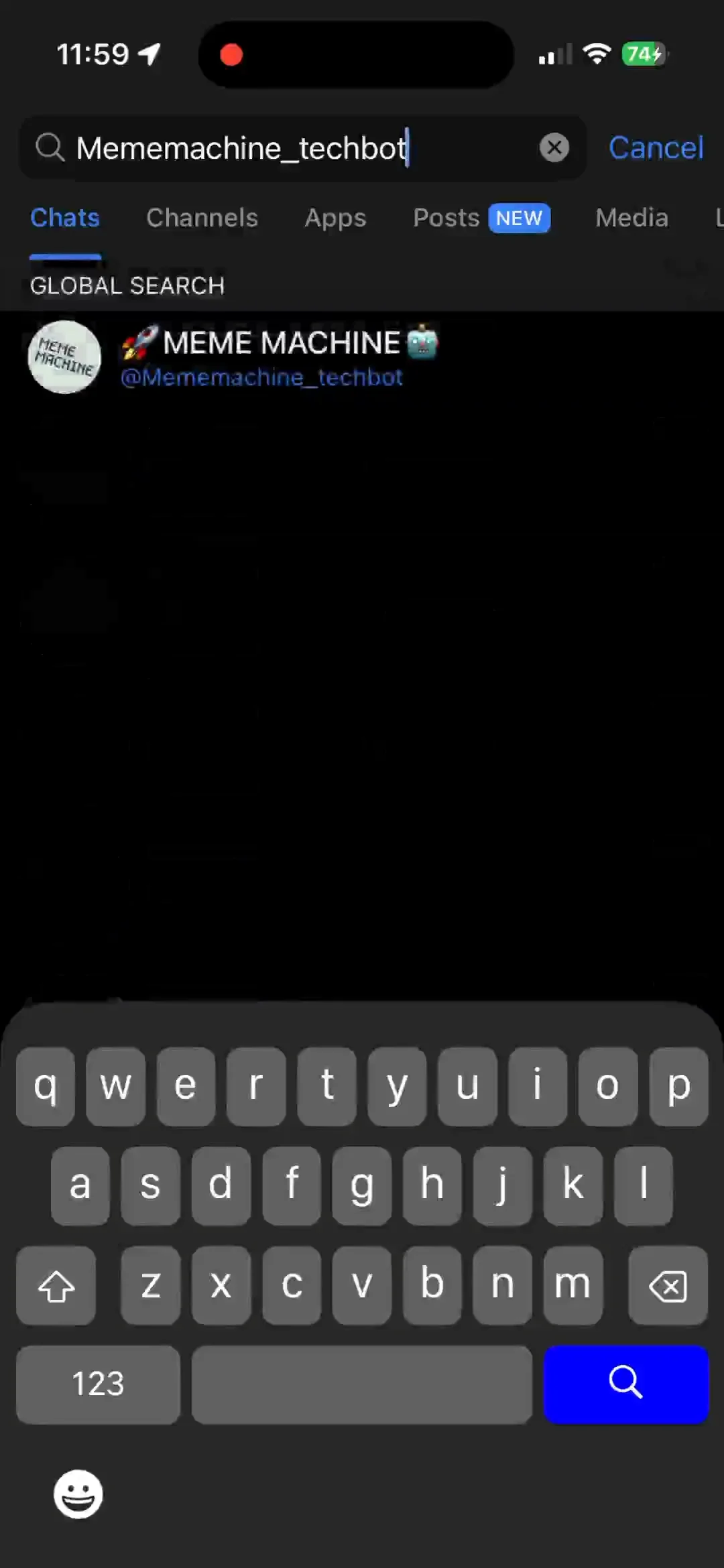
Open Telegram
Search for @Mememachine_techbot and tap Start.
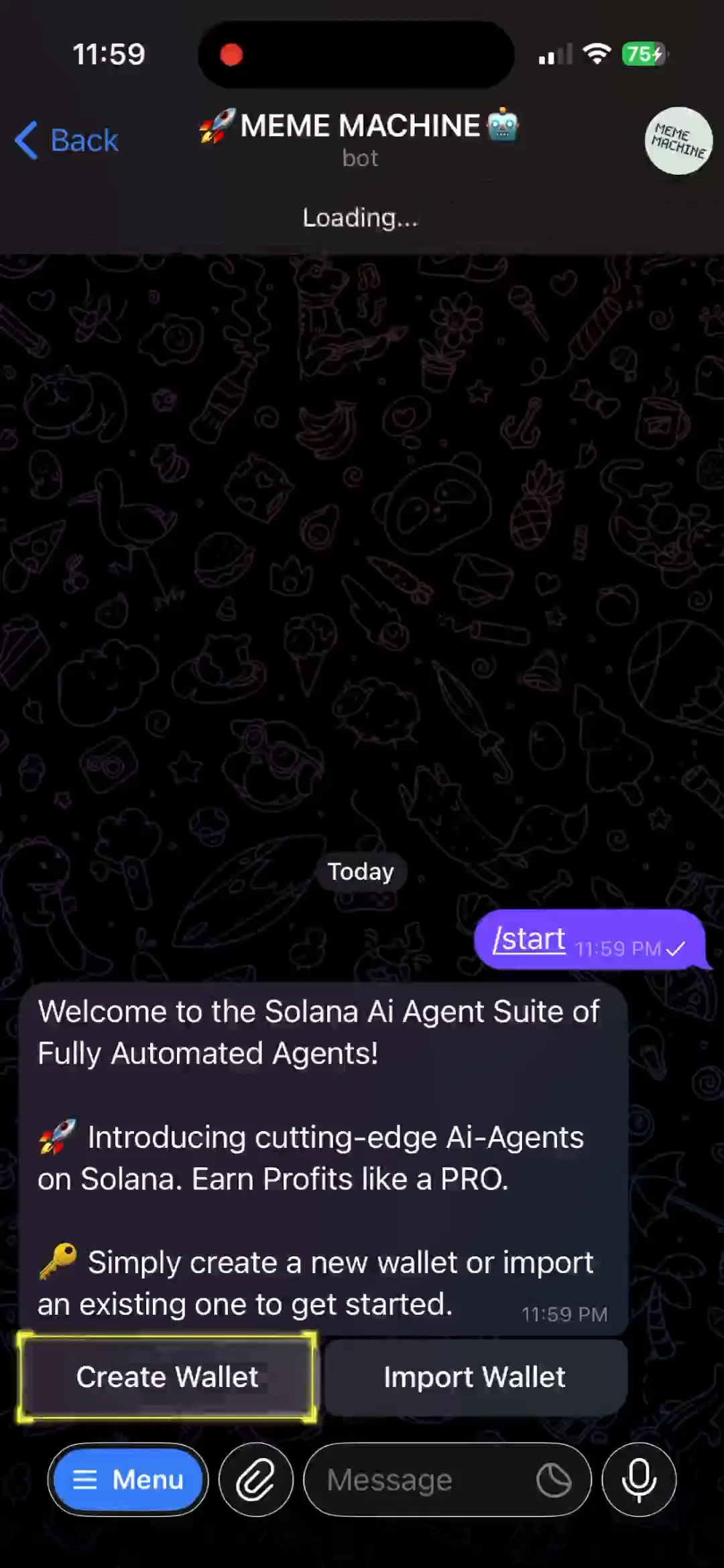
Create a wallet
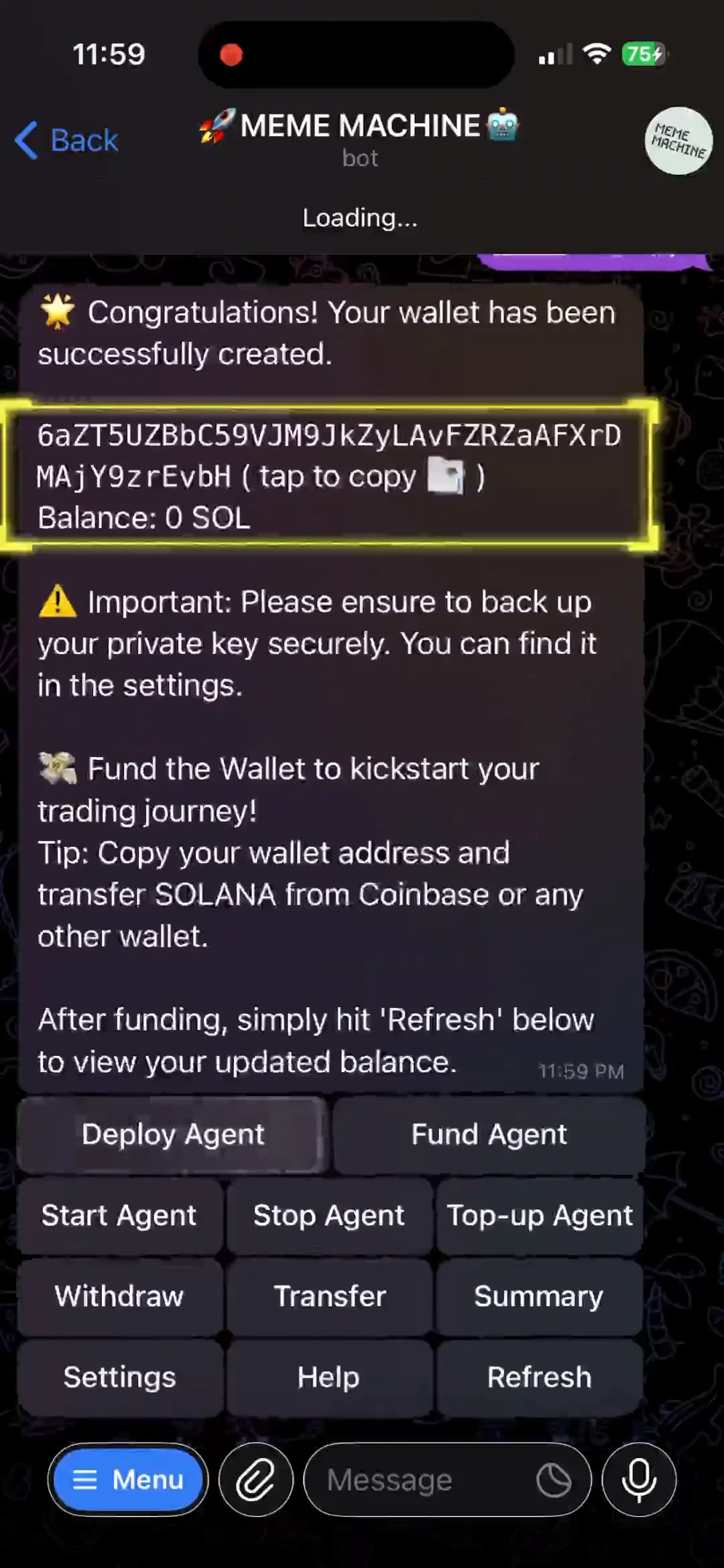
Tap Create Wallet. The agent will generate a wallet address for you.
Already have a Solana wallet?
Use Import Wallet instead of creating a new one.
Buy SOL.
SOL is the cryptocurrency used to deploy and fund your agent.
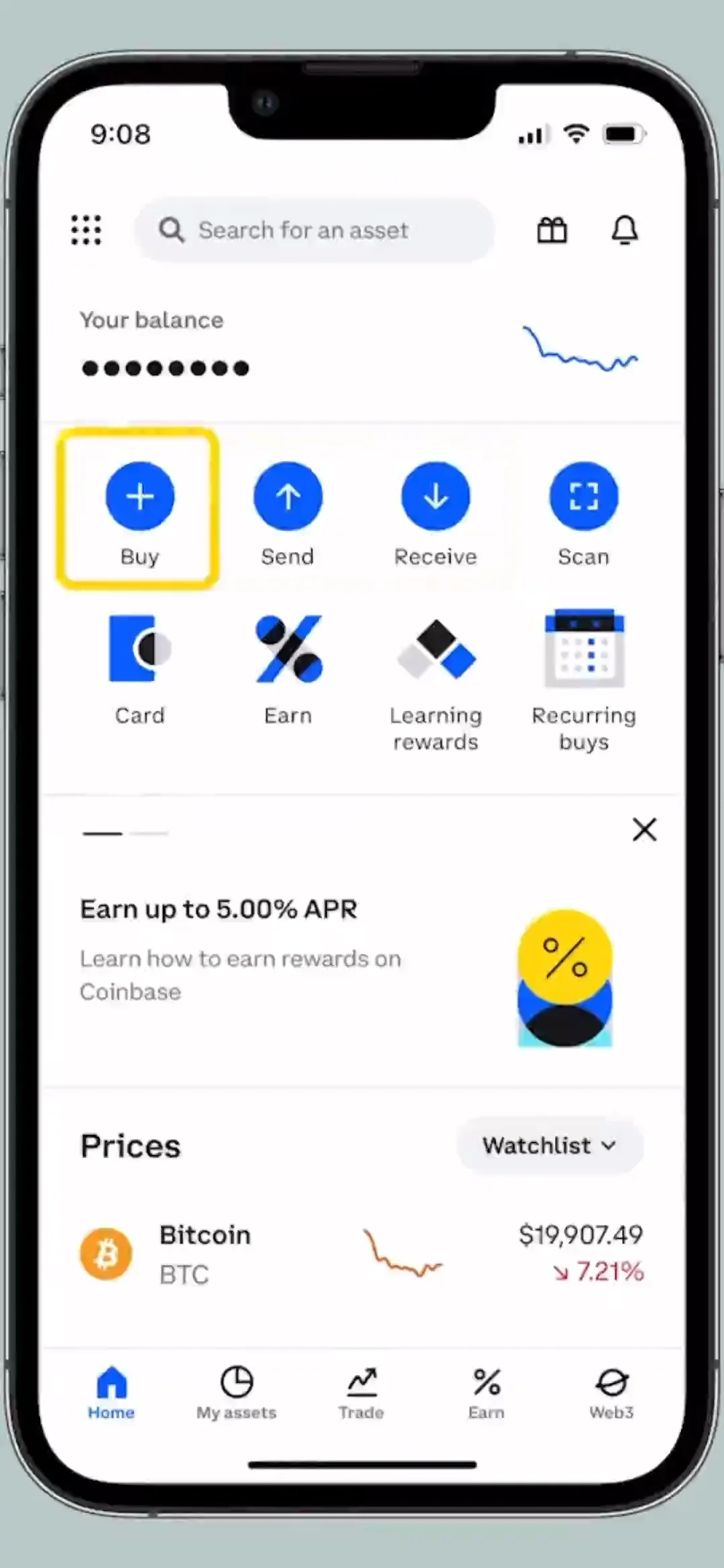
Open Coinbase
Tap Buy (or the + button).
Choose Solana
Select Solana (SOL) from the list of assets.
Enter your amount
Enter the amount of SOL you need. The example in this guide is 11 SOL.
Pay and confirm
Choose your available payment method, review the order, then confirm.
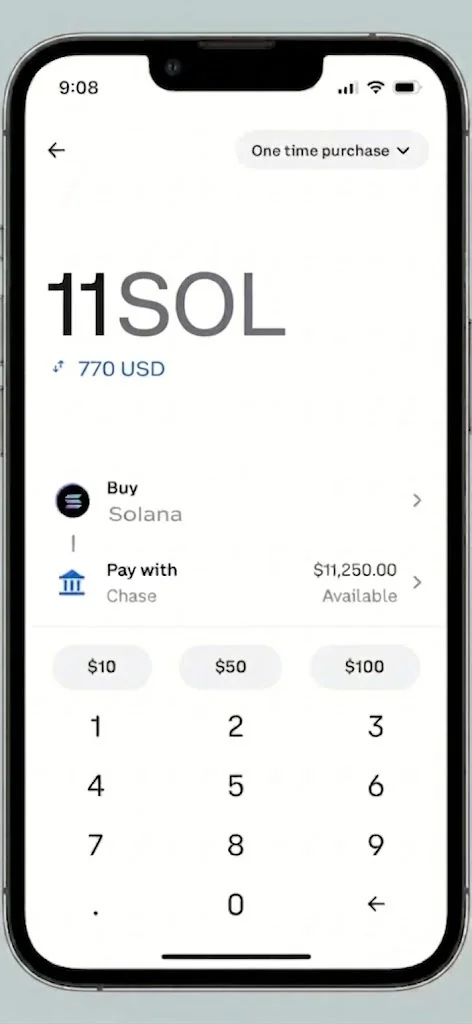
Send SOL to the agent.
This moves your SOL from your exchange/wallet into the agent wallet.
Copy the address
In Telegram, open your agent wallet and copy its wallet address.
Send from Coinbase
Tap Send, paste the address, enter the amount, then review everything carefully.
Refresh the agent
Return to Telegram and tap Refresh. The balance may take some time to update.
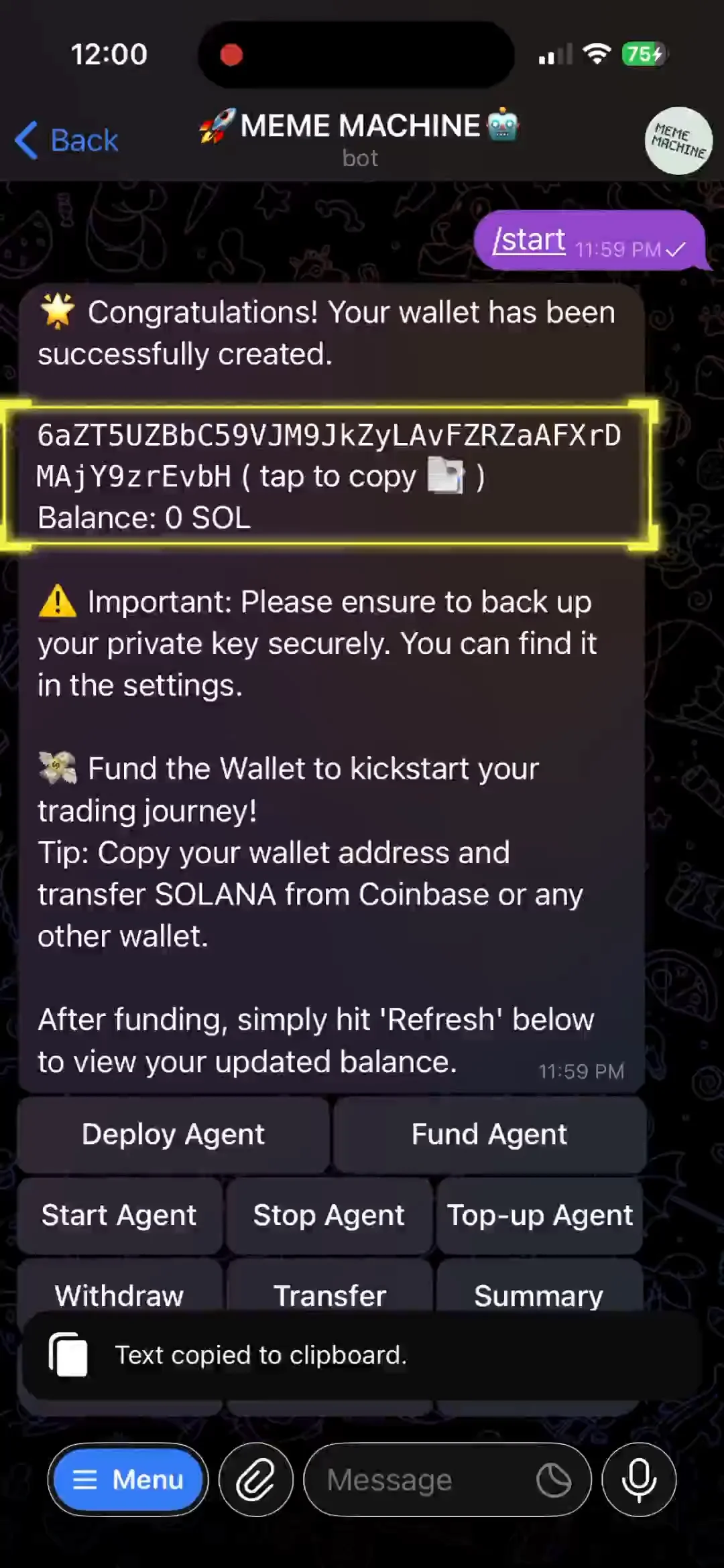
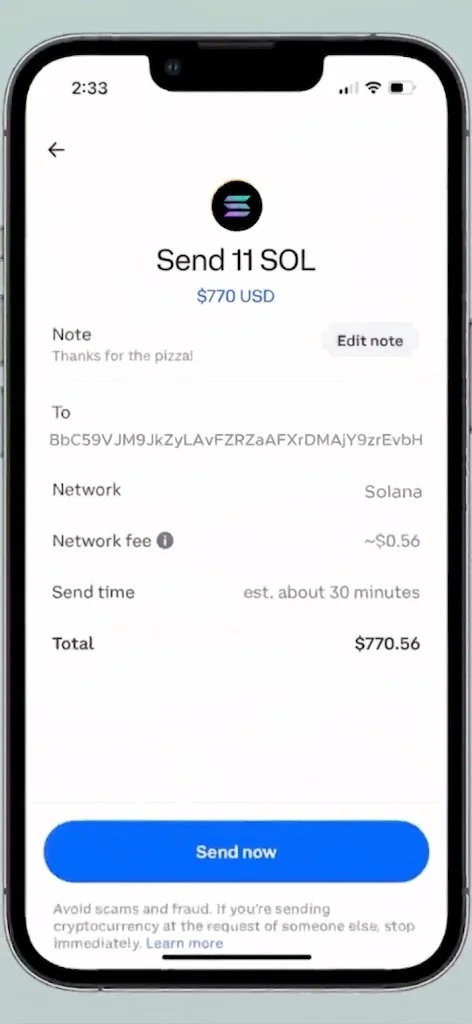
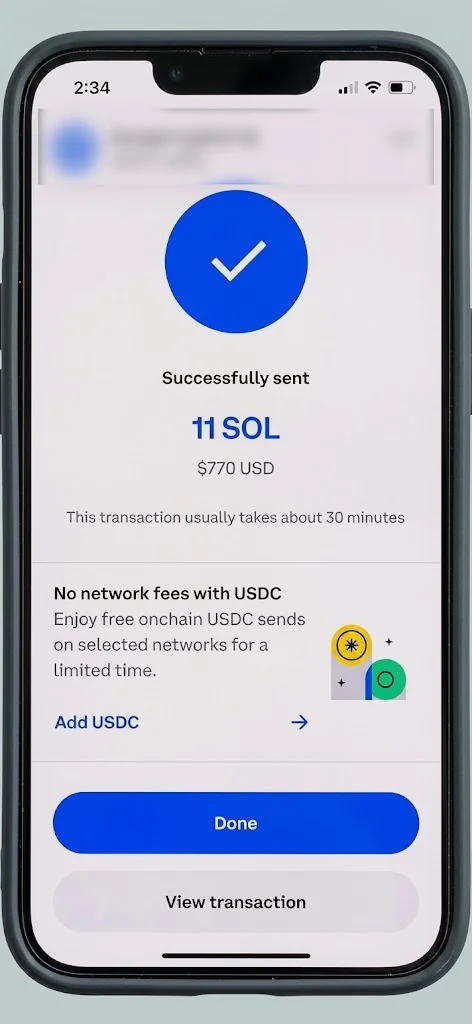
Choose your AI Agent.
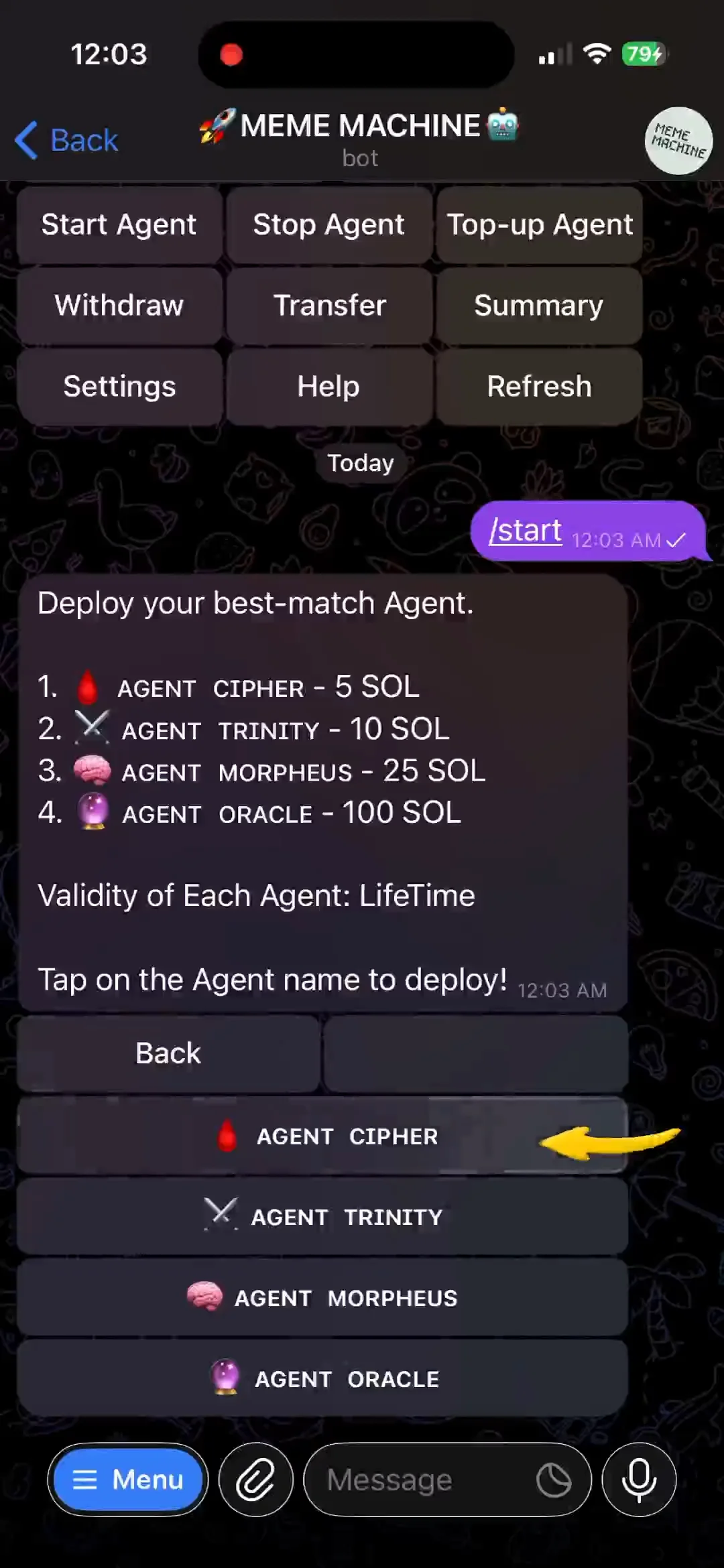
Go to Menu → Tap "Deploy Agent", then choose the agent you want.
Deploy it
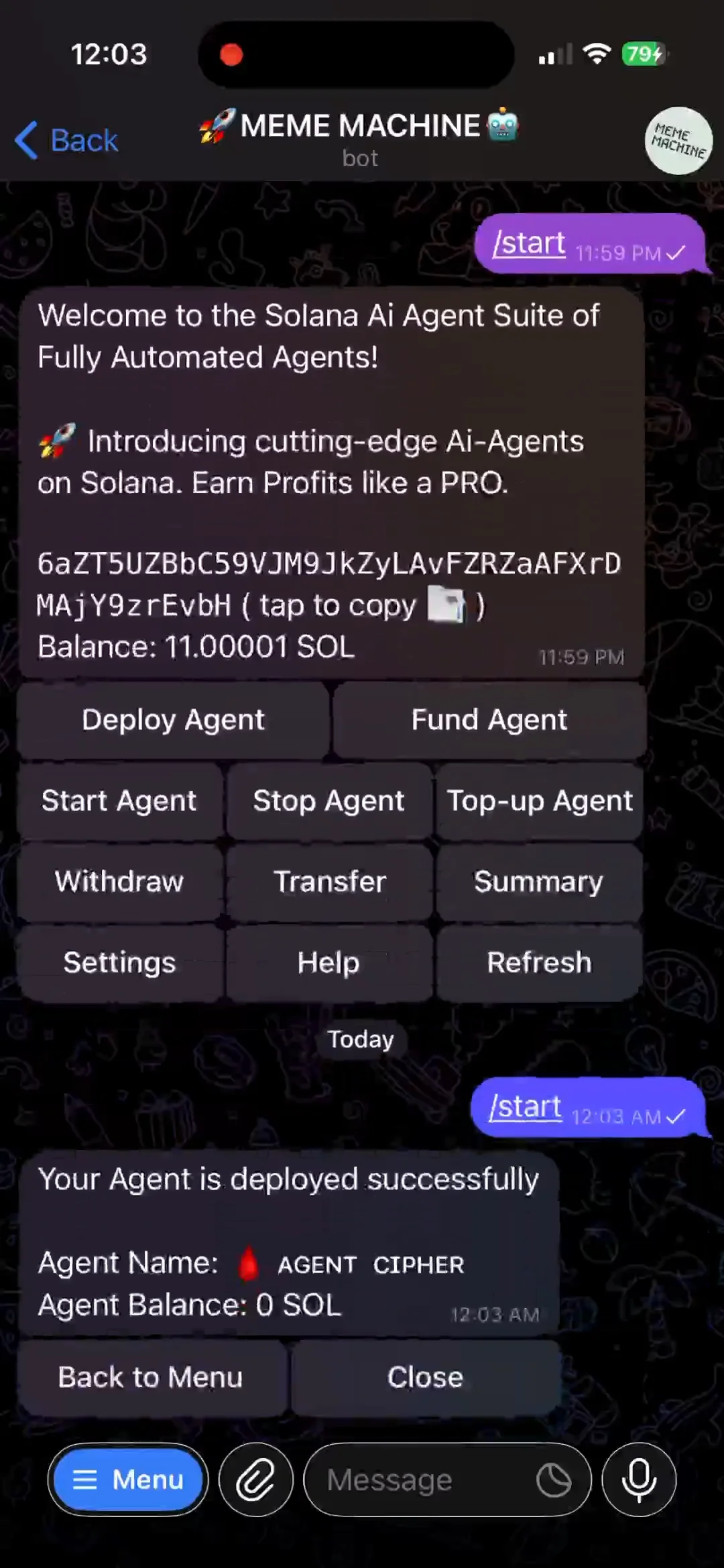
Tap your chosen agent, review the deployment fee, confirm, and wait for the transaction to complete.
Fund it. Then go live.
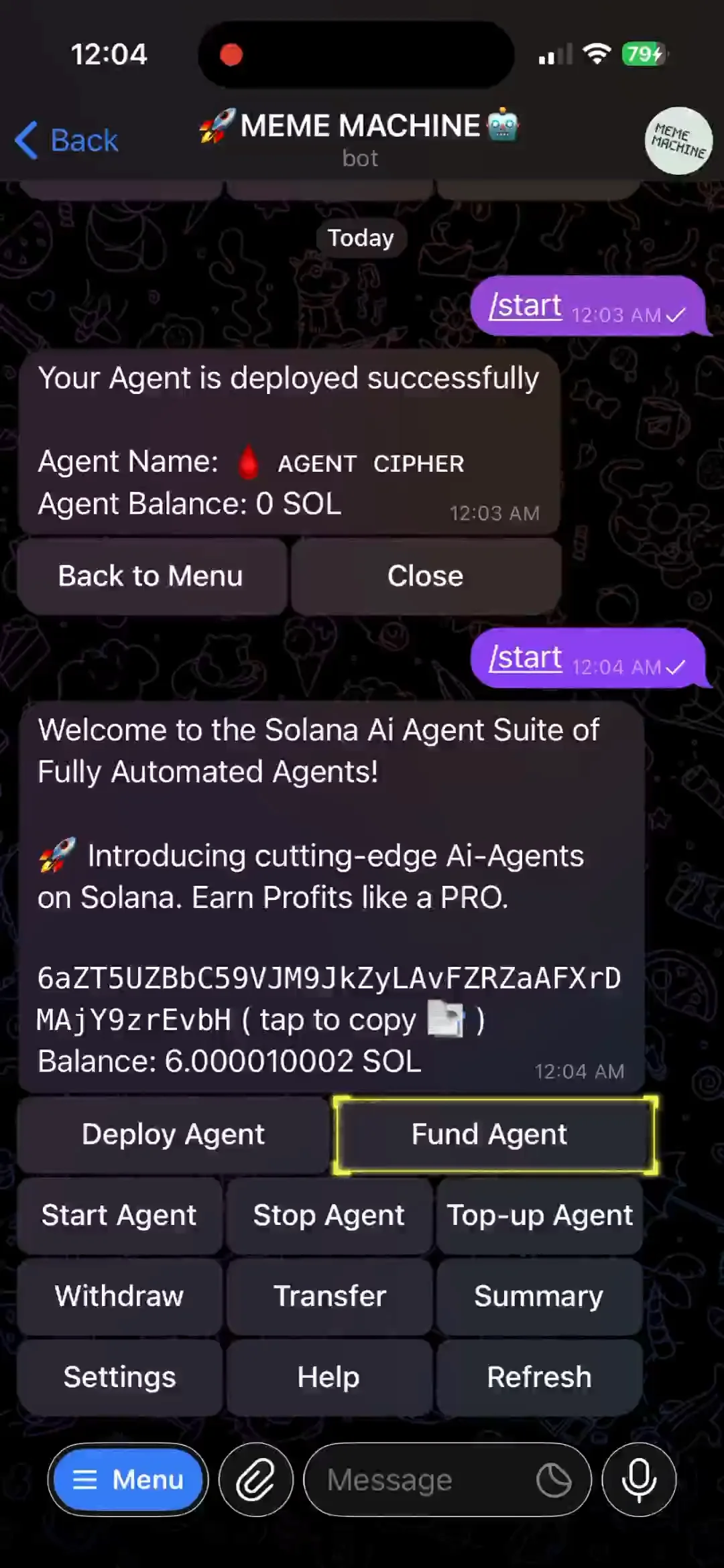
Deployment creates the agent. Funding gives it trading capital. Starting it puts it to work.
Fund the agent
Go to Menu → Fund Agent, select your agent, enter the amount you want to allocate, and confirm.
Start the agent
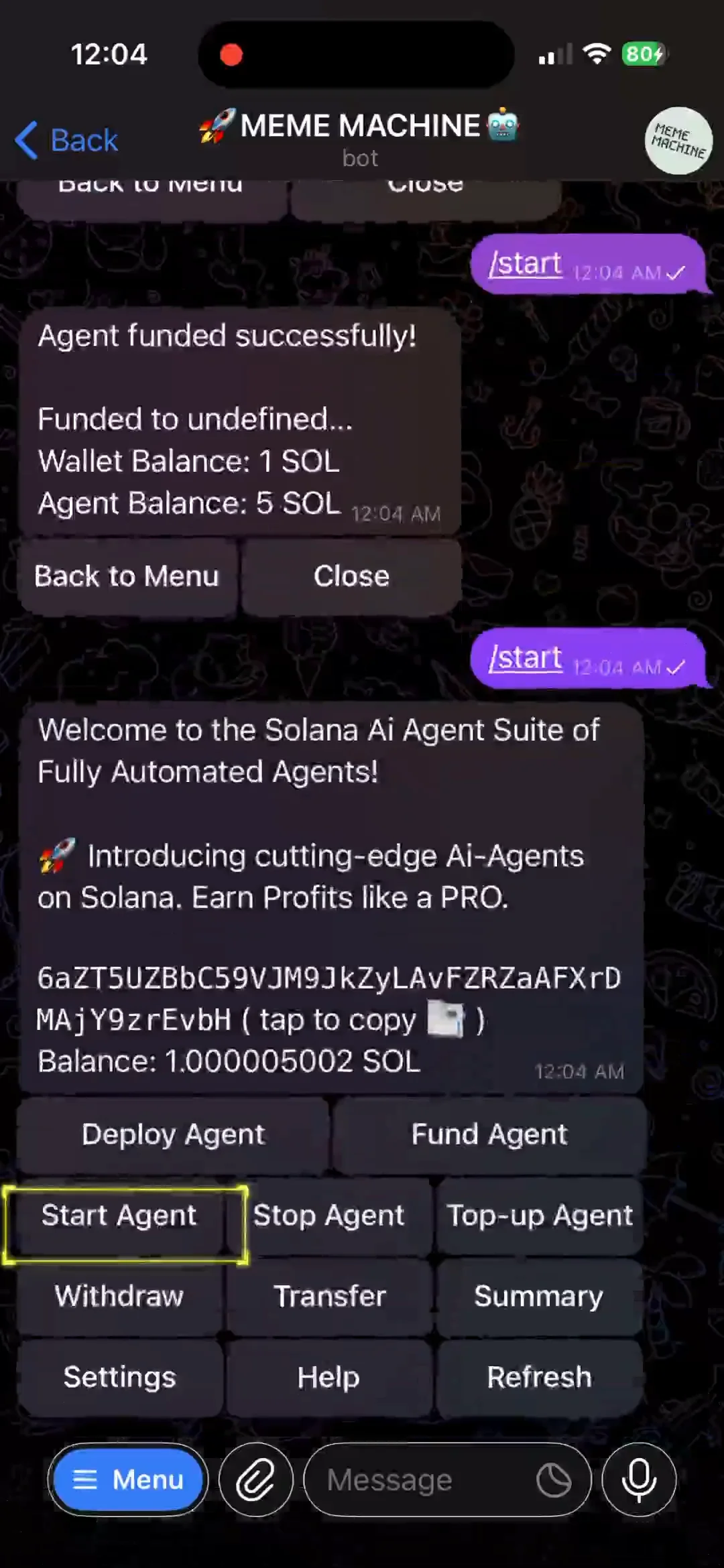
Go to Menu → Start Agent, select your agent, and confirm.
You're live.
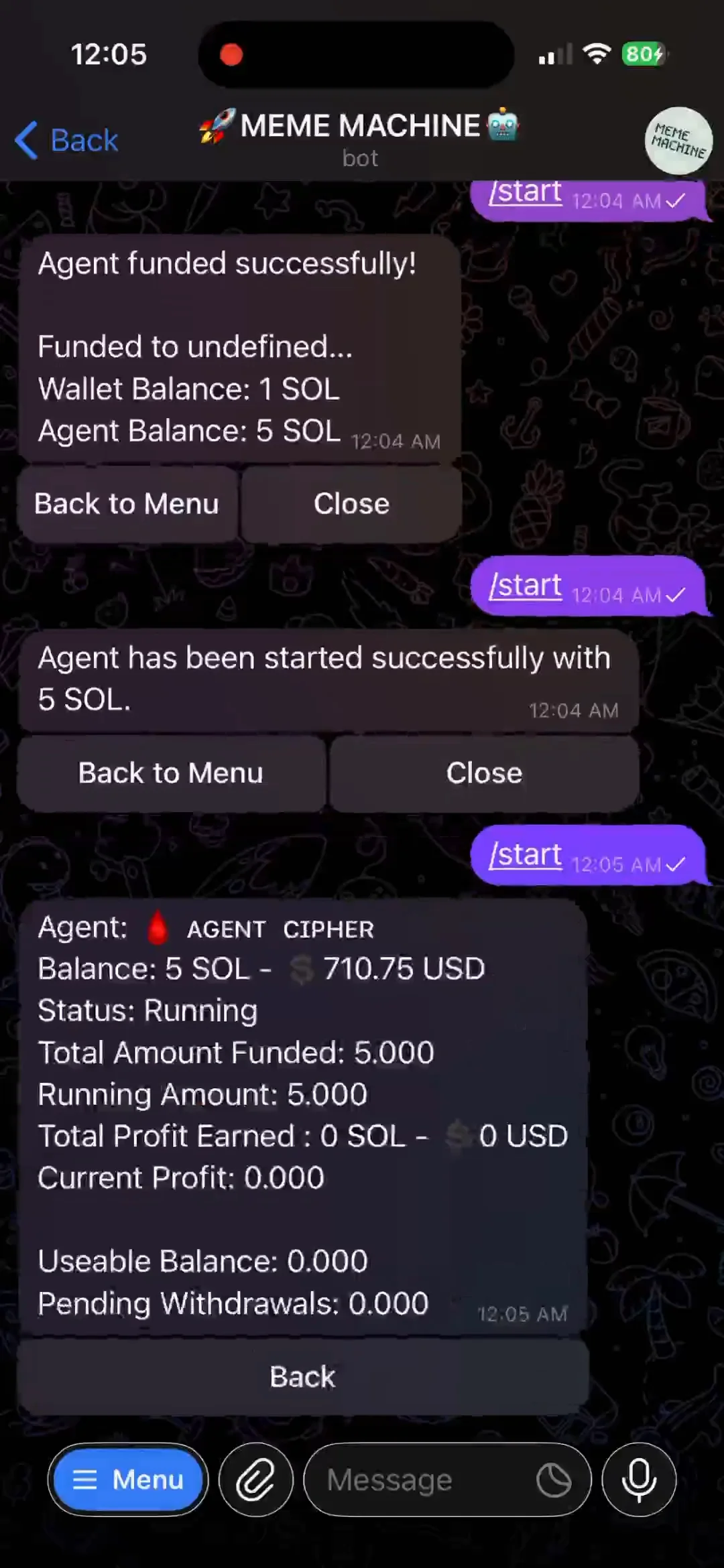
Your agent should now show as RUNNING. You can check it from the Summary menu.
Check your agent anytime.
Use the Summary screen to see what is happening with your agent.
Still confused?
Think of the setup as three simple things: create → fund → start.
What is the difference between deployment and funding?
Deployment pays the fee to create/activate your selected agent. Funding puts trading capital into the agent after deployment.
Do I need a new wallet?
No. If you already have a compatible Solana wallet, the guide provides an Import Wallet option.
Where do I see my balance?
Open the agent's Summary menu. The guide shows balance, status, total profit and usable balance there.
What if my balance doesn't update immediately?
Return to the agent and use Refresh. The current guide notes that an update can take some time after a transfer.